
Insights in Client Accounting
Insights is a feature that displays key financial metrics and ratios across all the clients.
Insights show key business performance at a glance, without opening each reconciliation or financial statement. You can also use filters to select clients based on specific criteria.
Using Insights, you can create queries and filters to
Search for files that meet specific criteria
Filter and retrieve data
Receive automatic notifications
There are 2 sections to Insights:
Insights: Where you can create and run data queries
Triggers: Where you can automate Notes or To-dos on saved queries
Setting up Insights
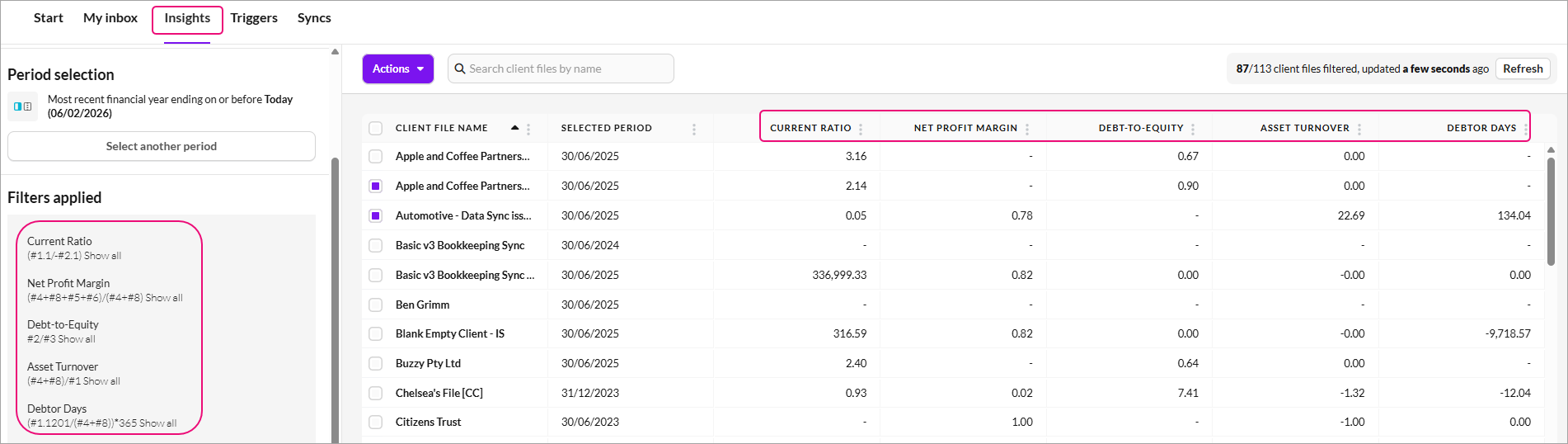
In Client Accounting, we have pre-configured insights to help you with the workflows. You can use these insights to get an overview of data across all your clients.
Name | Type | Formula / Reconciliation The numbers used in the example formula are the account codes from the Client Accounting chart of accounts |
|---|---|---|
Current Ratio | Formula | Current Assets ÷ Current Liabilities
|
Revenue Growth (%) | Reconciliation | (TY Revenue – LY Revenue) ÷ LY Revenue Alternative formula (TY Revenue ÷ LY Revenue) - 1 Reconciliation - Field - |
Net Profit Margin | Formula | Net Profit ÷ Revenue
|
Debt-to-Equity | Formula | Total Liabilities ÷ Equity
|
Asset Turnover | Formula | Revenue ÷ Total Assets
|
Debtor Days | Formula | (Accounts receivable ÷ Revenue) × 365
|

Good to know
The Insights module can only be used on client files that the user running the search has access to. Since the module is automatically linked to the user, different users may see different results based on their file access (Multi-file Access or Specific File Access).
Insights queries do not display results for an empty period when no ledger has been created.
Filters can be used in isolation or joined with other filters to create multi-layered insights.
You can copy an existing query by clicking on the 'save a New Query' and assigning a different visibility.
You can edit the pre-configured insights and save them as different queries with modified filters.
Filters can be edited to show a report of customers with specific values (eg, Current Ratio < 1) by changing the Comparison field and choosing <, >, =, etc.
Open any existing query.
Select the filter you would like to change. Locate the metric you want to change.
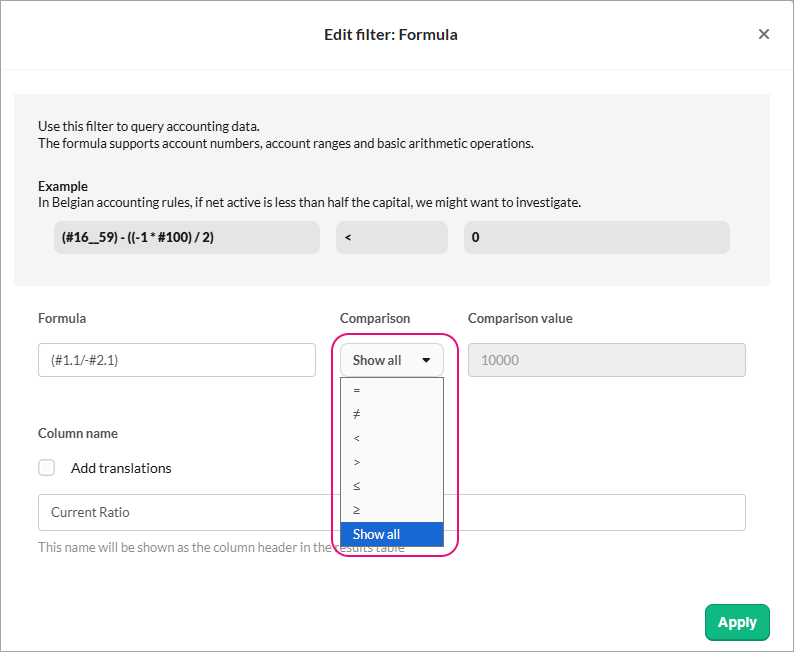
In the Comparison field, choose the operator you need (such as <, >, =etc.).
Enter the value you want to compare against.
We recommend saving it as a new query
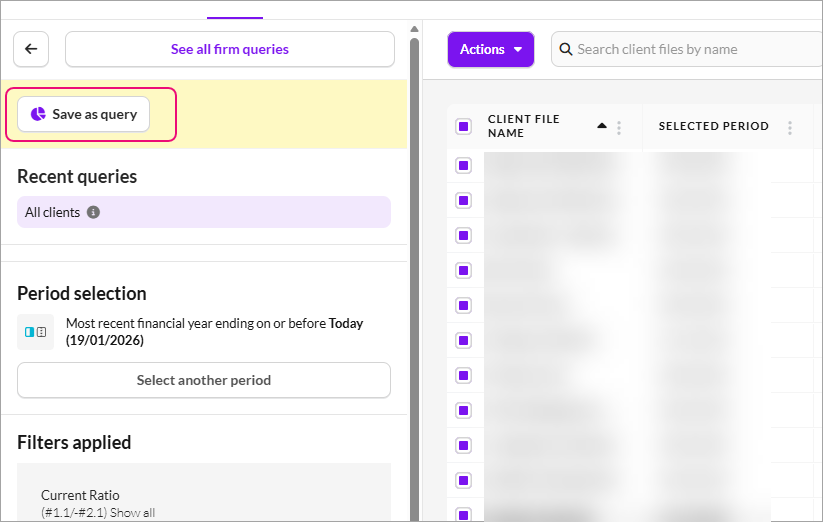
Save or run the query to see the updated list of customers.
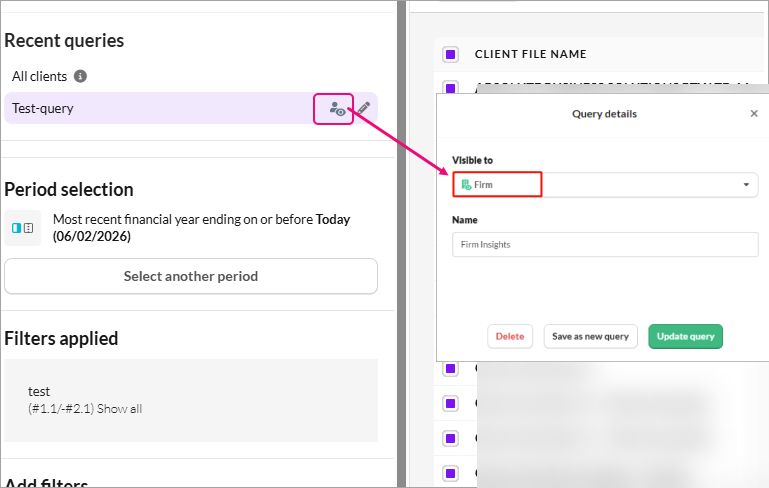
If you create a query as an admin, it is Private, Admin, or Firm-wide. Queries created by a general user are always Private.
Private Queries
Visible only to the user who created them.
General users can only create Private queries.
Admin Queries
Visible to all users with Admin rights within your firm.
Can only be created and managed by Admin users.
Firm Queries
Visible to all users in the firm.
Perfect for queries that benefit everyone, such as compliance checks or workflow reviews.
Only admins can create or change the visibility to the Firm.
Editing queries
Admin users can:
Edit their own Private queries.
Edit non-Partner Admin queries.
Edit non-Partner Firm queries.
However, they cannot downgrade the visibility of a query from Firm or Admin to Private.
This ensures firm-wide or admin-level queries remain available to all users who rely on them.
To update the filter for all clients, select the Visible icon and change to Firm and Update Query.
Under the Action menu, you can perform bulk actions. What you see under the Actions menu depends on the type of user logged in.
Archive a workflow
This option is available only for admins. Use this to archive workflows for multiple client files.
Download as Excel
This option is visible to all users. Use this to download query results into excel and save it to your computer.
Locking period
This option is available only for admins. Use this to lock periods for multiple client files.
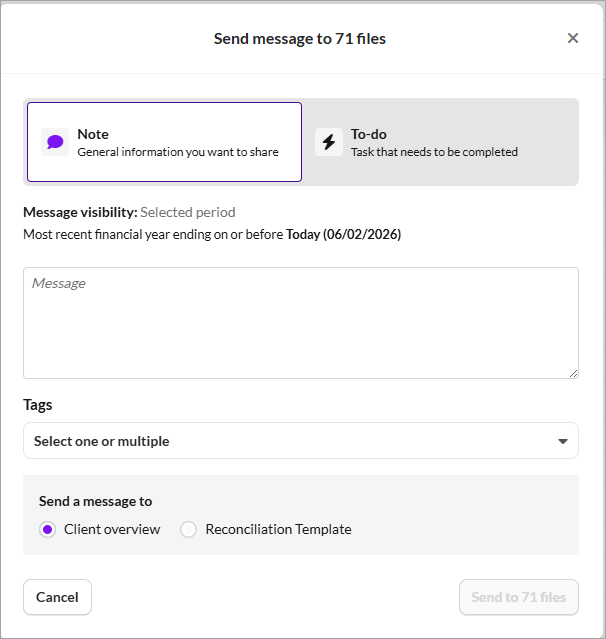
Send a message
This option is available for all users. Use this option to send a message to multiple files at the same time.
When you send a message, make sure you’ve selected the correct period.
Select Note or To-do to be placed in Client overview or Reconciliation Templates.
Triggers
A trigger is an automated action that creates a note or to-do in client files that match your query’s criteria. Only Admin users can create or manage triggers.
You can attach a trigger to a saved query.
For example, you could automatically notify users when a workflow reaches 100% completion, or when a director’s loan exceeds $10,000.
In the Insights tab, select the query you want to use.
Click Add a trigger.
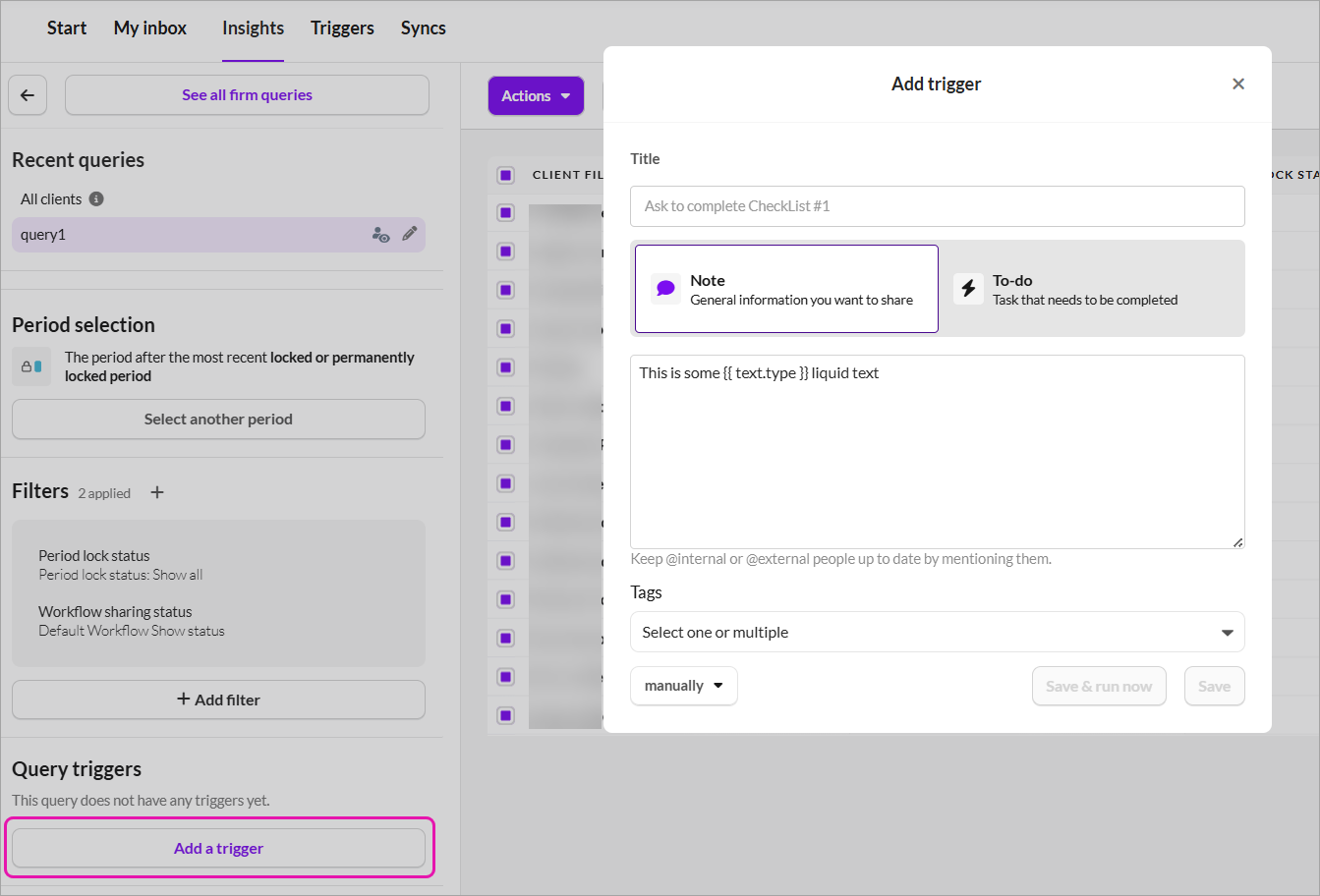
Choose whether to create a Note or a To-do.
Enter the default text that will be displayed on the file for that period after the trigger is executed.
Select the frequency:
Manual: You decide when to run it. Insights generates notes or To-dos only when you manually initiate this trigger.

Daily: The trigger runs it every day and creates notes or to-dos when new files meet the conditions.
When a trigger runs, the generated notes or To-dos appear:
In the Communication panel and the Communication tab of each relevant file
In the period where the query’s filters are met
If you’re mentioned in the note, you’ll also receive a notification.