
Mapping chart of accounts using AI
After you add your client data, you need to map the chart of accounts.
Mapping to Client Accounting's standardised chart ensures you're working with consistent data across all your clients.
Client Accounting uses AI to help with your account mapping by providing account mapping proposals.
This will save time and remove the complexities of mapping the accounts one by one.
Watch the video to learn about AI mapping
How does AI mapping work
When you go to the Account mapping window after importing your client data, the AI will start looking for the accounts that match.
AI account matches
The Account mapping window will display the mapping proposals on the left.
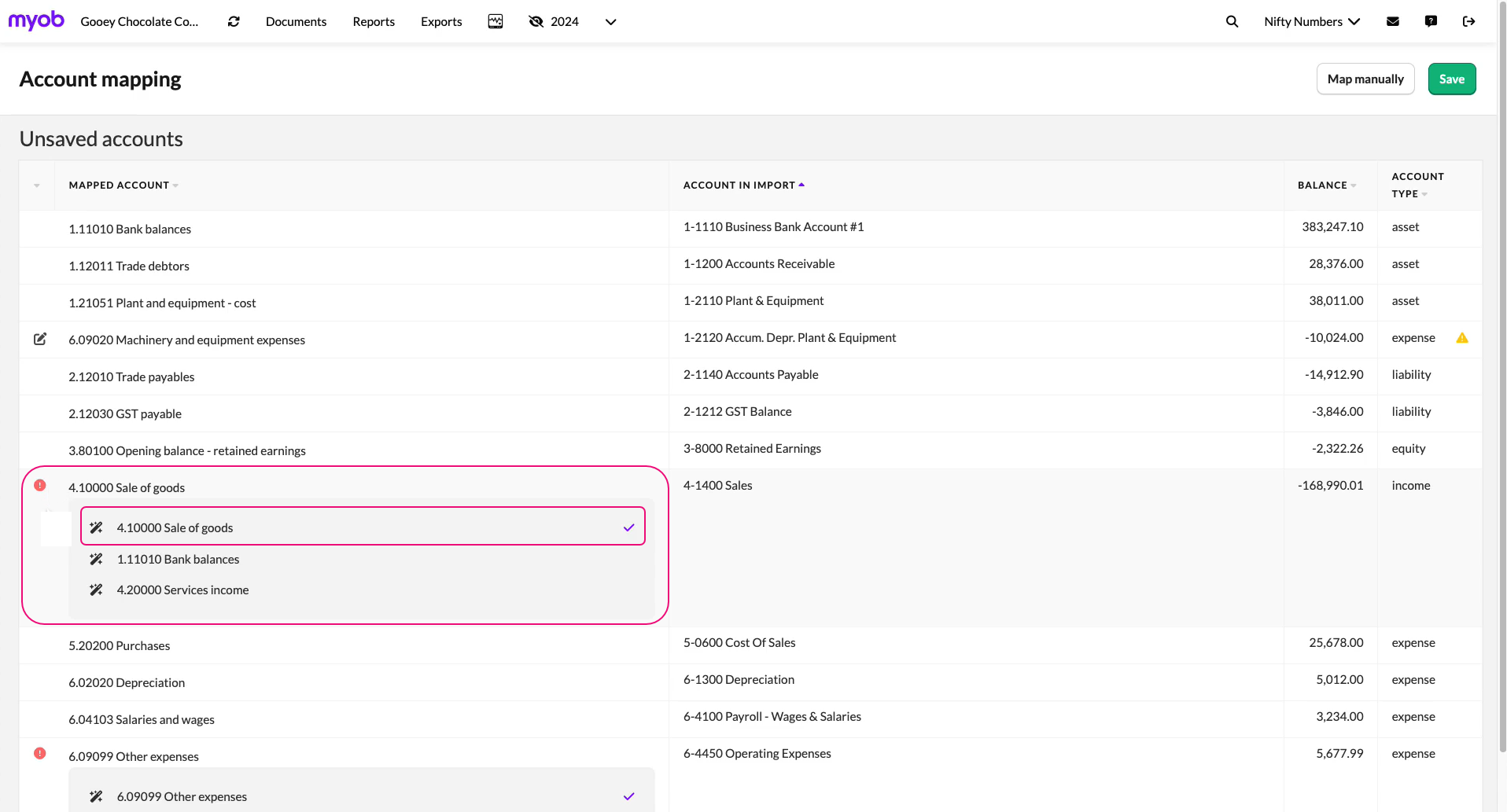
The system will show single account or multiple accounts proposals. You can review these and accept them.
The proposals have a confidence level:
High confidence has no indicator - You can accept these if you want.
Low confidence has a red exclamation mark - Review these suggestions.
Multiple accounts are ordered first based on the highest probability.
Accepting or updating the account mapping
In a single proposal, if you’re happy with it you don’t need to do anything.
In multiple proposals, the first one is ticked by default. You can either accept that or select another account you want.

Use the Account type column when reviewing the suggestions to check the type of account.
If the proposals are incorrect, you can remap the accounts by selecting Remap and selecting from the account codes list.
When you remap, you’ll see a pencil icon indicating that the AI suggestion has been manually edited.
Once you’ve reviewed mapping, select Save.

You’ll need to map these accounts once and remap any new accounts added after the mapping is complete.