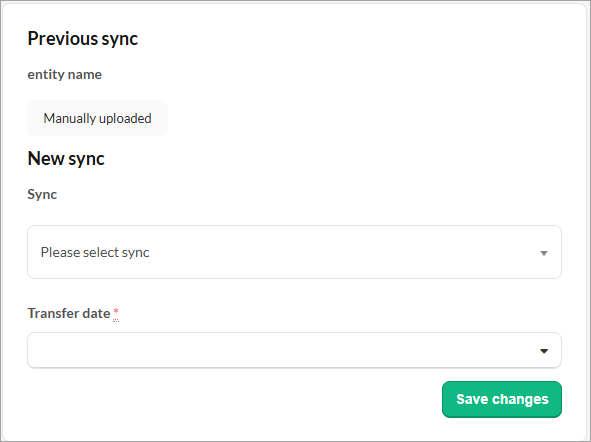
Updating synchronisation settings
Syncing a new ledger or updating your sync from manual upload to automatic synchronisation needs some planning to keep your data safe.

Resetting or updating the synchronisation will overwrite all existing ledgers in the file with new data.
This page shows you the steps to make the switch without losing any important financial information.
Switch from the existing automatic sync to a new automatic sync
Open the client, go to the Client Overview page and select Edit client.

Go to the Sync tab and select Setup Sync.
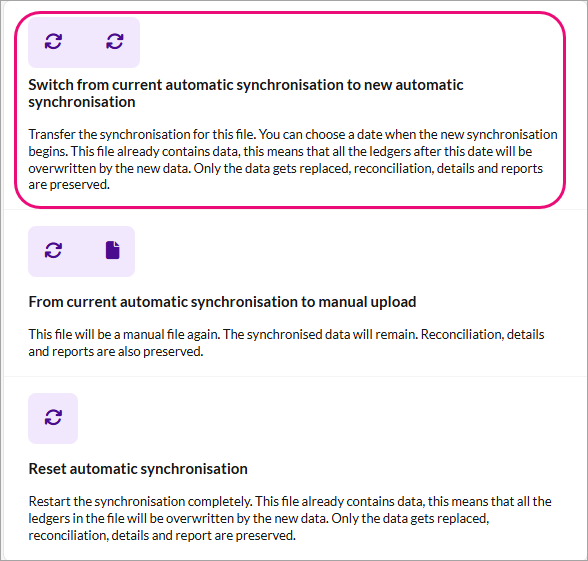
In the Synchronisation scenarios window, select Switch from current sync to new automatic synchronisation.
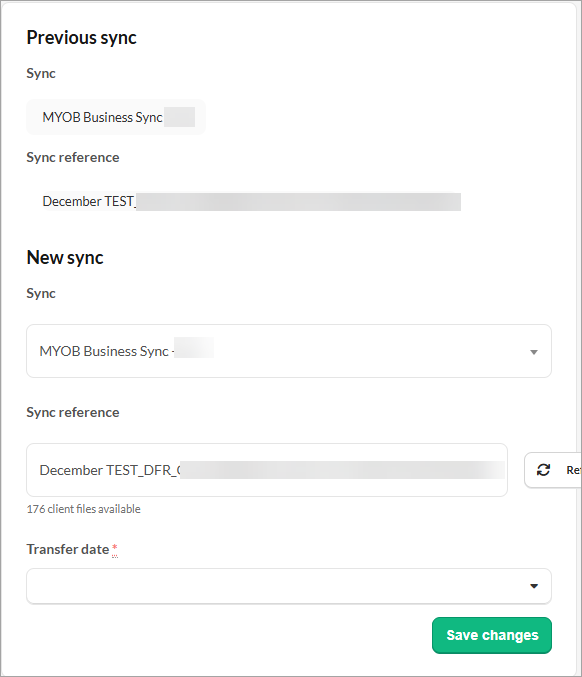
Select the new ledger and reference.
Make sure you’ve selected a Transfer date that must be the beginning of the financial year.
Switching from manual upload to automatic sync
Open the client, go to the Client Overview page and select Edit client.
Go to the Sync tab and select Setup Sync.
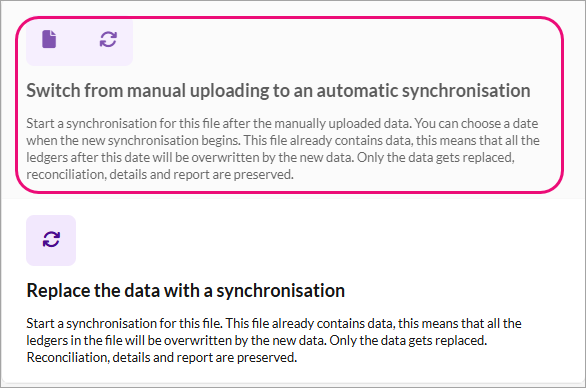
In the Synchronisation scenarios window, select Switch from manual uploading to an automatic synchronisation.
Select the new sync
Make sure you’ve selected a Transfer date that must be the beginning of the financial year.