
If you have existing data, you can migrate a MAS, Accounts or AO Classic General Ledger to MYOB Ledger.
The data migrated to the MYOB Ledger includes:
-
ledger details (such as entity type, reporting period)
-
chart of accounts
-
closing balances of the financial year.
You can migrate either:
-
the full prior year balances
-
the partial current-year balances, including transactions for any future periods. This migrates transactions that are equal to or greater than the financial year start date as a Journal type.
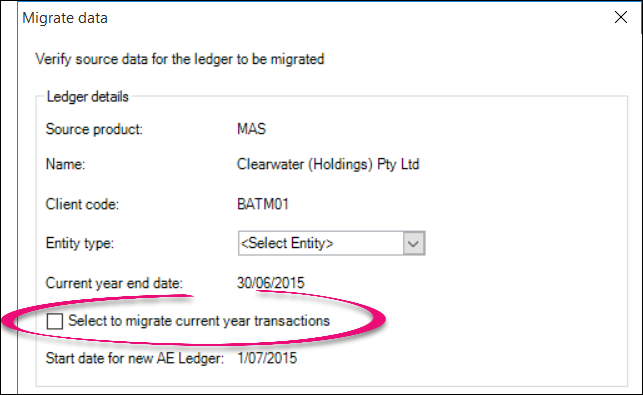
Use the Select to migrate current year transactions checkbox to choose your preference when migrating data.
Comparative figures are migrated into MYOB Ledger, so you can use the figures for review processing and produce financial statements with up to 5 years of data.
Before you begin
You may want to check the following:
-
the ledger you are migrating is balanced
-
asset journals have been posted from AE Assets or AO Classic Fixed Assets to your legacy ledger
-
the current ledger year has been completed.
You don't need to roll forward your MAS, Accounts or AO Classic General Ledger to migrate. The migration process does not make any changes to the MAS, Accounts or AO Classic General Ledger.
There are three tasks you need to perform to migrate your ledger:
2. Migrate to MYOB Ledger
-
Go to the client’s Client Accounting > Workpapers tab.
-
On the TASKS bar, click Migrate to AE ledger or Migrate to AO ledger.
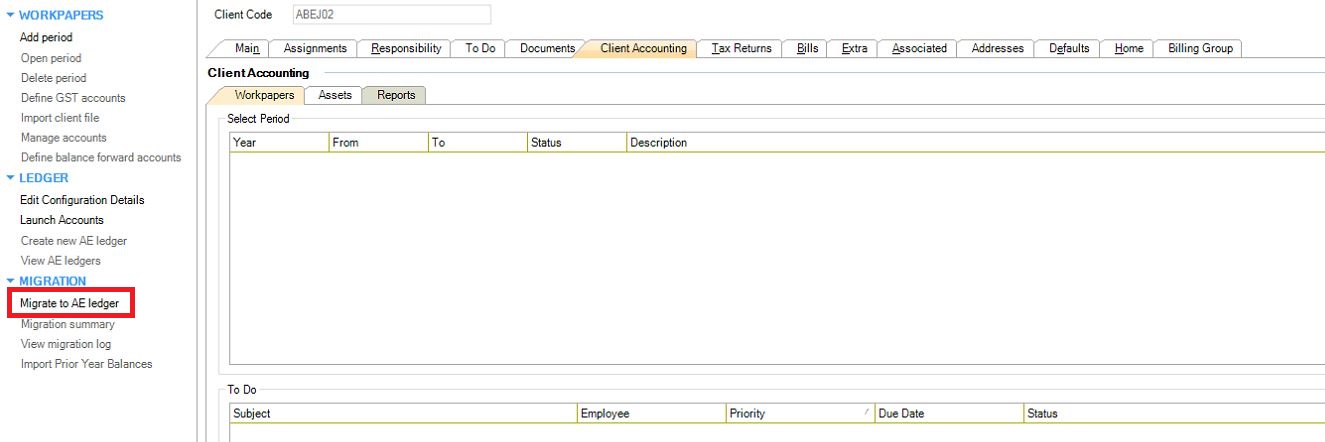
The Migrate data window appears. Most details are automatically retrieved from your existing ledger but there are some options you can change:Data migrated
Description
Source product
The general ledger type that you are migrating.
Name
The name of the configured existing ledger.
Client code
The client code for the selected client's ledger.
Entity type
The entity type defined when you configured the ledger. Select a different entity type from the drop down if required.
If the client is configured using legacy ledgers the Entity type defaults to <Select Entity>. You can edit this as required.Current year end date
The last day of the current year in the selected client’s ledger.
Select to migrate current year transactions
You can either:
-
leave clear to migrate the full prior-year balances
-
select to migrate the partial current-year balances, including transactions for any future periods. This migrates transactions that are equal to or greater than the financial year start date as a Journal type.
Start date for new AE/AO Ledger
The date from which you want to start using the AE Ledger.
-
-
Review the Migrate data window's options and change if necessary.
-
If you are not using an MYOB standard chart, click in the ledger account column in the table at the bottom of the Migrate data window and enter the correct value to use for each account in the list.
The specified codes are displayed against these accounts after migration in the Workpapers tab and the Manage Accounts window.
If you are using an MYOB standard chart, the ledger account values displayed in the table at the bottom of the window are correct. -
Click OK. When the migration is successfully completed, the Migration summary window appears displaying the migration details, including the prior-year balances available (from and to dates).
-
If you closed the Migration summary window after successfully migrating your ledger and you want to review the migration details, click Migration summary from the TASKS bar any time.
4. Check the tax codes in MAS
-
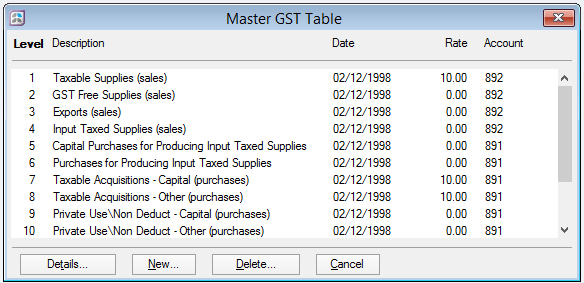
Open the MAS ledger and go to Setup > Master Files > GST Table. The Master GST Table window appears.
-
Check if your tax codes match the codes in this tax types chart.
-
If your tax codes don't match those in the chart:
-
In the Master GST Table, add or edit the GST rates.
GST levels 1–14 are usually MYOB defaults. -
Go to Setup > Client Files > Ledger Options.

-
Enter G in the Tax Type value field.
-
-
If your tax types aren’t the same as those in BankLink Practice, either:
-
delete the tax type if it's not in use or
-
change the tax code in BankLink to a default tax type code (for example, NTR) and Adding journals manually.
-
We recommend that you take a look at your Check your System Accounts.