Release date—17 February 2021
Release notes
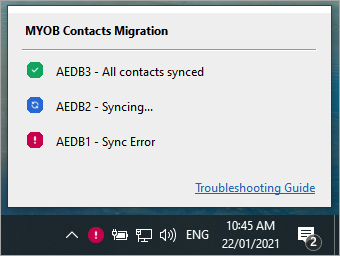
We've updated the icons that indicate the . The icons are now more intuitive, and it's easier to understand what stage of the sync process you’re in.
|
Icon |
Description |
|---|---|
|
|
There was an error syncing your contacts, or syncing is inactive. |
|
|
Contacts data is being synced or migrated. Don't make any changes to any contact or client data during this stage. Some AE/AO data may not be in MYOB Practice yet. This stage can take a few minutes and up to several hours depending on how many contacts are being synced. |
|
|
MYOB AE/AO data is in sync with MYOB Practice. Sync is active and running normally. Initial migration has successfully completed and your contact data is available in MYOB Practice. Changes you make to clients and contacts in AE/AO will sync automatically with MYOB Practice on an ongoing basis. |
The icons are displayed in the system tray of the server you're migrating data from; you won't see them on all workstations.
You can also click the icon to display the MYOB Contacts Migration window, which shows you a short description of what each icon means and a link to the .
Install guide
Installing the hotfix
For this hotfix, users don't need to log out of MYOB AE/AO before you run the install.
-
You need to be on the server where MYOB AE/AO is installed.
-
Click MYOB_AEAO_ANZ_Hotfix_KB59067593.exe to download the file.
-
Double-click the downloaded file and follow the steps in the InstallShield Wizard.
-
To confirm that the installation completed successfully, check that you see the latest style of icons in the system tray of your Windows desktop: