
Release date—April 2026
Release notes
We’ve rolled forward the Masters to 2027 year.
What's new
Trusts only
Changes to tax rates
-
New NTD field: We’ve added a new Non-transaction data field under Notes > Taxation > TaxRateTrusts
The default rate is 33% however you can select 39% from the picklist if applicable.
We don’t calculate the amount based on the percentage selected. The amount comes from the account code in the account group CurrentLiabilities.Taxation.Terminal
Change to formats
-
Notes - Taxation (Diff)
Row 23 (at master level) - The description will now pick up the percentage rate as selected in the NTD. -
Tax Reconciliation - Trusts (Internal Use Only)
Row 15 (at master level) - The description will now pick up the percentage rate as selected in the NTD.
If you currently have either or both formats at the practice or client level, either delete the format so it reverts to the master level or manually make the change to the format at the practice or/and client level
Income Tax accounting policy and Taxation accounting policy
-
We’ve changed the formats in the following paragraphs
Accounting Policies - Income Tax
Accounting Policies - Taxation -
If you have the following jobstreams at Practice or/and Client level, follow the instructions below. If any of them are at the Master level (RED), then ignore the instructions.
-
For Jobstreams
-
#Company Financial Statements
-
#Company Financial Statements - No Minutes
-
#Sole Trader Financial Statement
-
#Trust/Estate Financial Statements
-
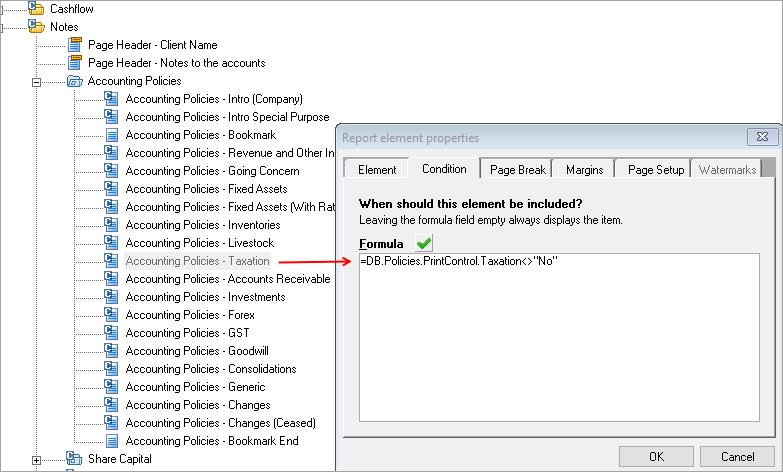
Open the jobstream and expand - Notes > Accounting Policies
-
Right-click Accounting Policies - Taxation and select Properties.
-
Select the Condition tab.
-
Replace the existing Formula with
=DB.Policies.PrintControl.Taxation<>No -
Select OK to save.
-
-
-
For Jobstreams
-
#Incorporated Society Financial Statements
-
#Trust Charitable Financial Statements
-
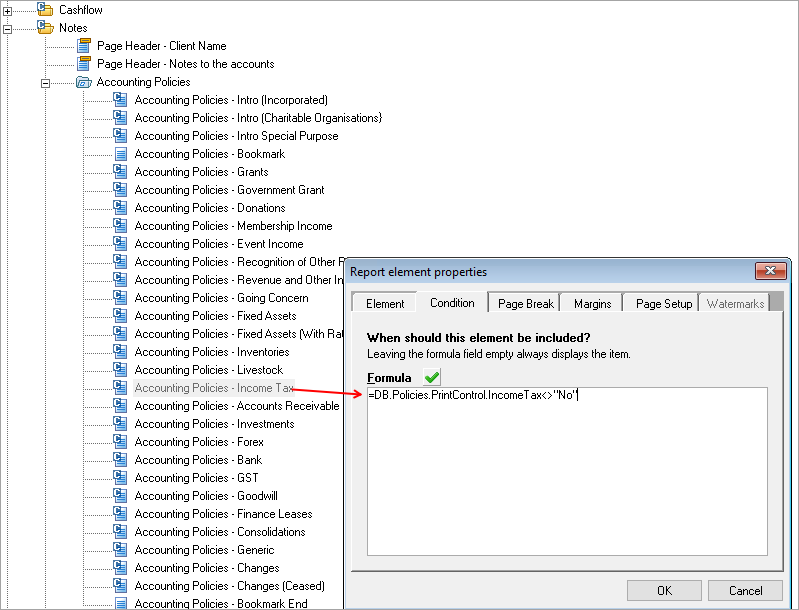
Open the jobstream and expand - Notes > Accounting Policies
-
Right-click Accounting Policies - Taxation and select Properties.
-
Select the Condition tab.
-
Replace the existing Formula with
=DB.Policies.PrintControl.Taxation<>No -
Select OK to save.
-
-
-
Charitable organisations - Compilation report
We’ve changed the wording from performance report to financial statements in the following paragraphs:
-
Scope (In the 1st sentence)
-
Responsibilities (In the 1st sentence)
All other references to performance report wording are correct.
New keypoint in IR10
Keypoint = 60 Total of investment boost assets being claimed
-
You can enter the amount of the investment boost in the new NTD field under IR10c > IR10c
New field = 60_TotalOfInvestmentBoostAssetsBeingClaimed -
We have updated the following formats with the new keypoint 60.
-
IR10c for the year 2013 onwards
-
IR10c DETAILED
-
Install guide
Install AE Reporter
You'll need to be on the server to install this update.
-
Log in to my.MYOB and go to My Products > Downloads.
-
Select MYOB Reporter from the drop-down.
-
Select MYOB AE Reporter 3.5.700 - Install, download the file to your server.
-
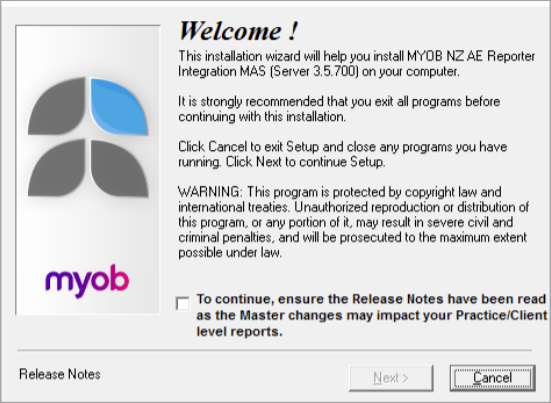
Open the file.
-
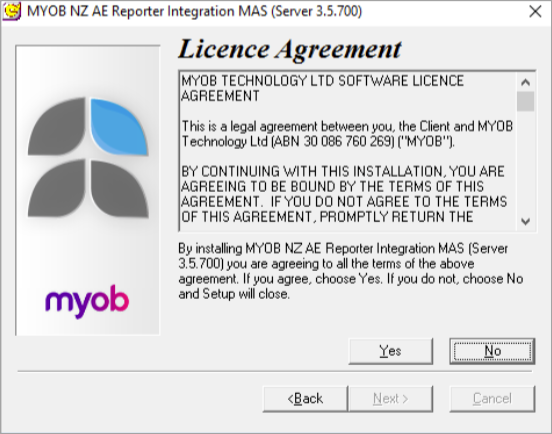
Select To continue, ensure the Release Notes have been read... and click Next. The Licence Agreement appears.
-
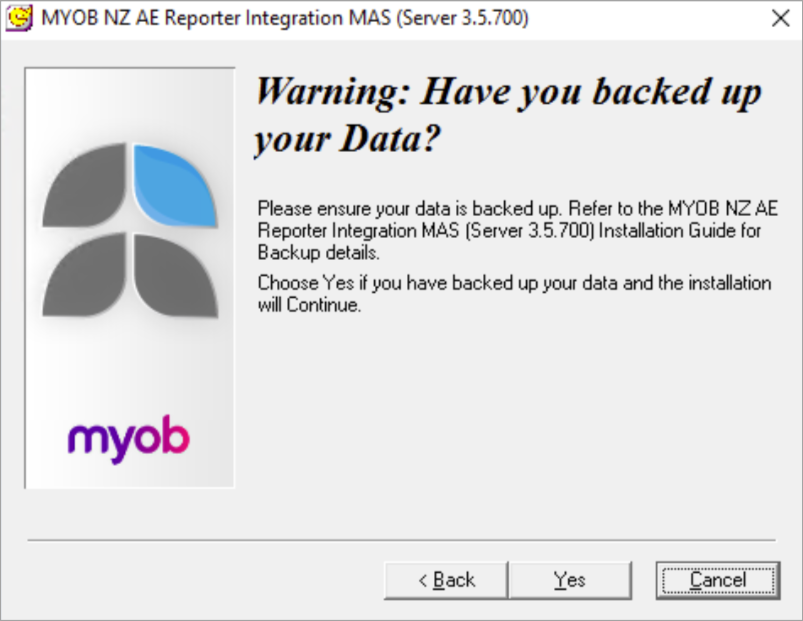
Review the licence agreement, click Yes to accept, and click Next. The backup reminder window appears.
-
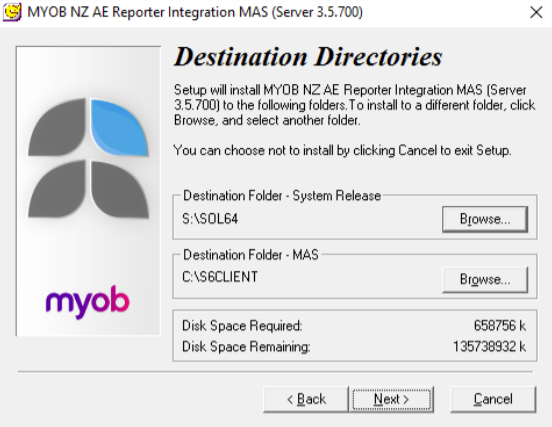
Make sure you've backed up your data, and click Yes. The Destination Directories window appears.
-
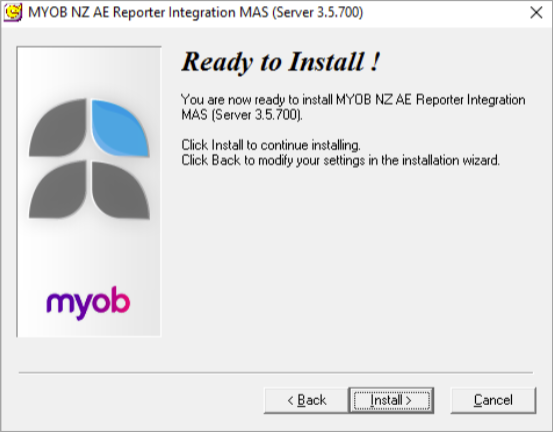
We recommend that you accept the default destination folder. If you want to change the default folders, click Browse and navigate to the required folder and click Next. The Ready to Install window appears.
-
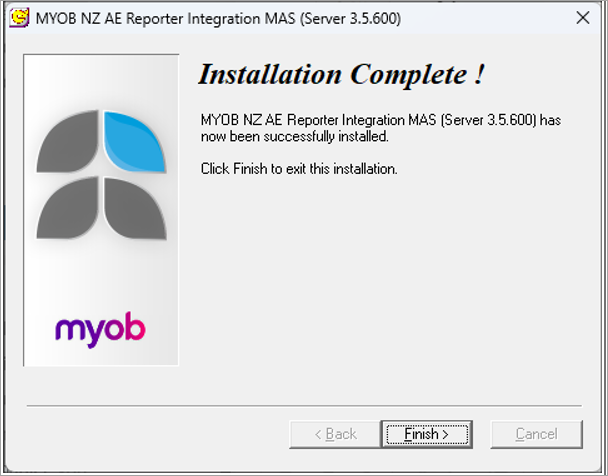
Click Install. When the installation is complete, the Installation Complete window appears.
-
Click Finish to complete the installation.