
This support note applies to:
-
AE Practice Manager (AU, NZ)
-
AO Practice Manager (AU, NZ)
-
AE Tax (AU, NZ)
-
AO Tax (AU, NZ)
-
AE Client Accounting (AU, NZ)
-
AO Client Accounting (AU, NZ)
-
AE Tax Series 6 & 8 (AU)
These instructions require technical expertise
Make sure you know what you're doing and are using one of the products listed. If you're not sure, ask your IT professional or MYOB.
Article ID: 33977
These instructions are only for SQL Express installations.
The following is information regarding installing SQL Express with Management Tools to the MYOBACCT instance with mixed authentication and configuration options.
Installing Microsoft SQL Server Express and Microsoft SQL Server Tools
Install Microsoft SQL Server Express
-
Ensure you meet the SQL Server: Hardware and software requirements.
If you have an earlier version of Management Studio, remove it first via add/remove or programs and features.
-
Download and run SQL 2022-SSEI-Expr.exe. SQL Server 2022 Express opens.
-
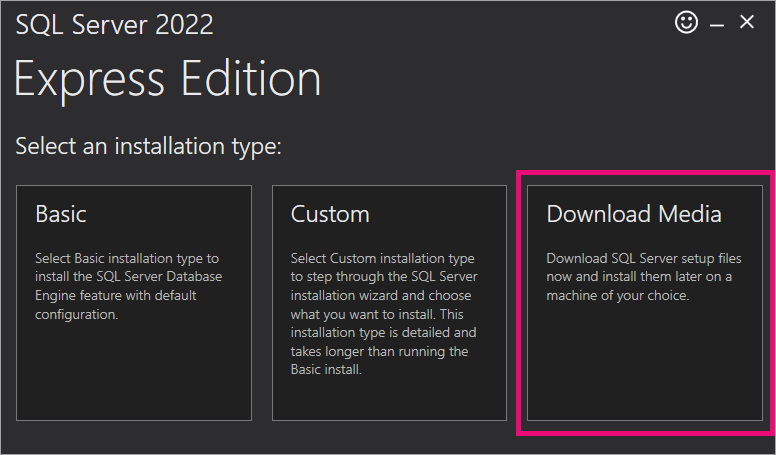
Choose Download Media.
-
Choose your download options and click Download.
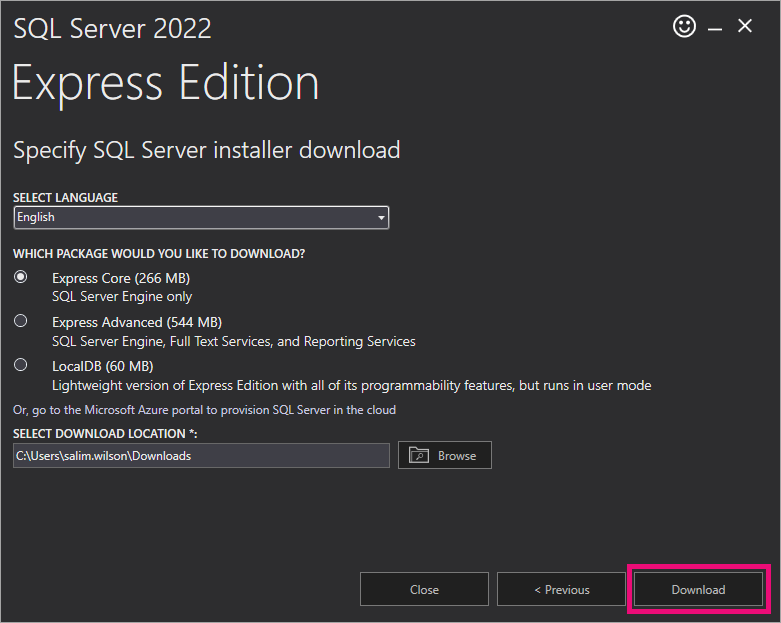
SQLEXPR_x64_ENU.exe is downloaded.
-
Run the downloaded SQLEXPR_x64_ENU.exe file. The installer opens.
-
Click New SQL Server stand-alone installation or add features to an existing installation.
-
Agree to the Licence Terms.
-
Click Next until you see the Installation Rules.
-
Click Next.
-
Depending on what’s applicable for your practice, either deselect or select Azure Extension for SQL Server.
-
Click Next. The Feature Selection window appears.
-
Ensure Database Engine Services is selected and click Next. The Instance Configuration window appears.
-
Select Named Instance and change Named instance and Instance ID from SQLExpress to MYOBACCT.
-
Click Next. The Server Configuration windows appears
-
Ensure both SQL Server Database Engine and SQL Server Browser have an Account Name. For example: NT Service\MSSQL$SQLEXPRESS or NTAUTHORITY\LOCALSERVICE.
-
Ensure both SQL Server Database Engine and SQL Server Browser have the Startup Type set to Automatic.
Disregard the Collation tab.
-
Click Next. The Database Engine Configuration window appears.
-
On the Server Configuration tab select Mixed Mode and enter the Password.
Password policyYou need to meet the password requirements below for certain features in AE/AO to work:
-
Passwords must have between 8–14 characters. If you choose a password that is 15 characters or longer, some features in AE/AO may not work.
-
Passwords must have one lowercase, uppercase, numerical and special character.
-
-
Click the Data Directories tab, change the instance root directory or other directories if needed and click Next. The wizard continues and the Complete window appears.
-
Click Close. The installation is complete.
-
Restart the computer.
NZ AO only
There will be changes to AO Classic GL connection after installing SQL 2019. See Changes in AO after upgrading from SQL 2014 to SQL 2019.