Not available in Accountants Office
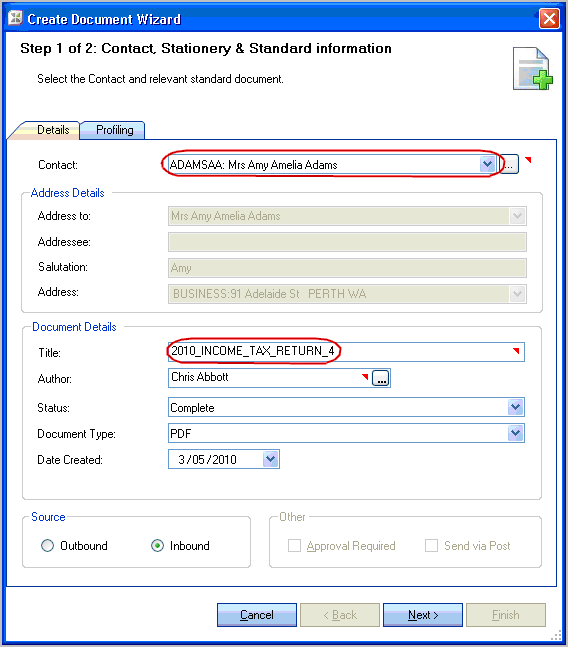
When using the Save with function to profile to Document Manager the Contact pre-fills with the correct client code from the tax return printed and the Title pre-fills using a naming convention relevant to the tax year printed.
To set up automatic profiling
-
With the tax return open, click Reports > Print Return.
-
Make your selections and click OK.
-
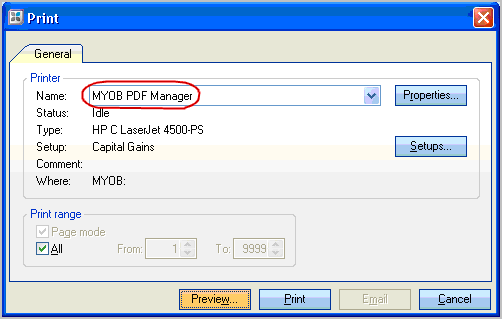
At Printer Name, select MYOB PDF Manager from the list of printers.
-
Click Print to save the printed return to the Source Documents tab.
-
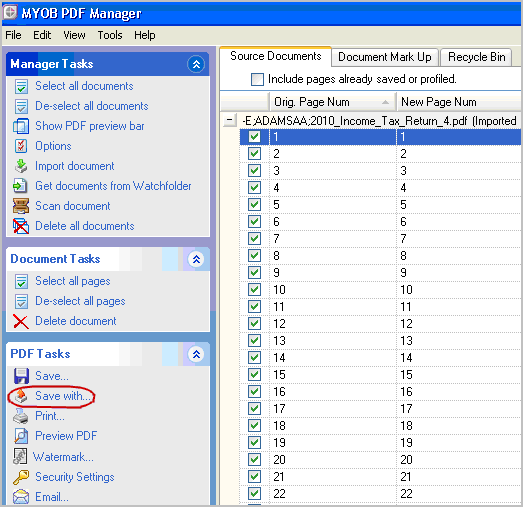
In the Source Documents Task bar, expand the PDF Tasks and click Save with.
-
The Contact shows the client code from the tax return and the Title pre-fills using a naming convention based on the tax return year printed.
-
Make the selections and click Next to move on to the Profiling tab.
-
On the Profiling tab, make the selections and click Finish.
-
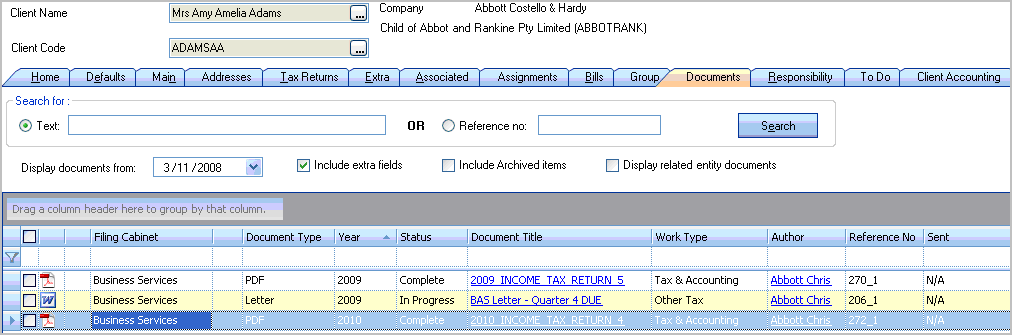
The tax return is profiled to MYOB Document Manager, and added to the client's Document tab in Practice Manager.