
The Print Letter Options allow you to generate your letter using text letters layouts. This process is not a wizard, there is no step back.
-
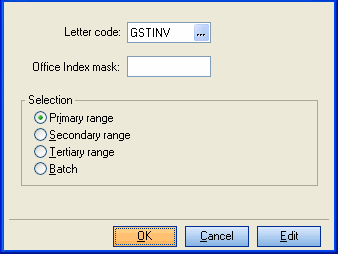
Click Reports > Letters to open the Print Letter Options window.
-
At the Letter Code field enter the code of the letter or click [F10] to browse to it. If you do not enter a letter code here the default letter layout will be used.
-
At the Office Index Mask field use an Office Index Mask, if required. Refer to Office Index Mask 2023.
-
At Selection determine what returns will have letters printed:
-
Primary Range
-
Secondary Range
-
Tertiary Range
-
Batch - This provides an index of all returns on Tax from which a batch of returns may be selected individually.
To print a letter for a single return, click Batch and select from the list of returns.
-
(AE, Series 6 & 8) Click OK to open the Record Selection according to range or batch:
-
(AE, Series 6 & 8) When printing letters by range, the sort sequence and range of returns to be printed are specified. Refer to Record Selection 2025.
-
(AE, Series 6 & 8) When printing letters by batch select one or more returns from the index. Refer to Print Letters by Batch 2023.
-
-
Click OK to continue to the Preview/Print screen and select the printing options for previewing and printing.
-
Click OK to continue.
Assessment notices (by batch)
When entering assessment notices (by batch), an option to print a letter automatically occurs at the end of the batch update routine. The letter to be printed defaults to the Master Letter Layout - AssBLet, but you may select a customised Practice Letter Layout.