The default toolbars are Standard, Print Preview and Note Editing.
This illustrates the Standard icons added to the toolbar for Cut, Copy, Paste and Add a Note.

Tax also provides a set of icons which you may use to customise toolbars.
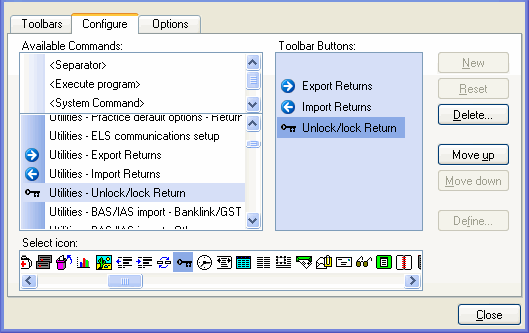
How to customise a toolbar
-
Double-click on ‘empty’ space on the standard toolbar.
-
Click Customise.
-
Open the Configure tab.
-
From the Available Commands: double click the function to be included on the toolbar.
-
From the Select icon panel scroll right and left through the icons. Double click to associate an icon with the function.
We recommend that you assign each icon only once.
-
Click New to move the icon/function pair to the customised toolbar.
-
Click Close to display the new toolbar.
This tab allows you to add a new toolbar, delete a toolbar (Remove), adjust the position of toolbars (Move Up, Move Down) and to name the toolbars if required.
