
Adding an adjustment
Adjustments are manual journal entries in Client Accounting.
It's important to note that if you have an automatic sync with the client's ledger, adjustment journals do not flow back into their ledger. You need to post adjustments back to your client's ledger manually.
On this page, learn how to
There are 2 ways to post an adjustment:
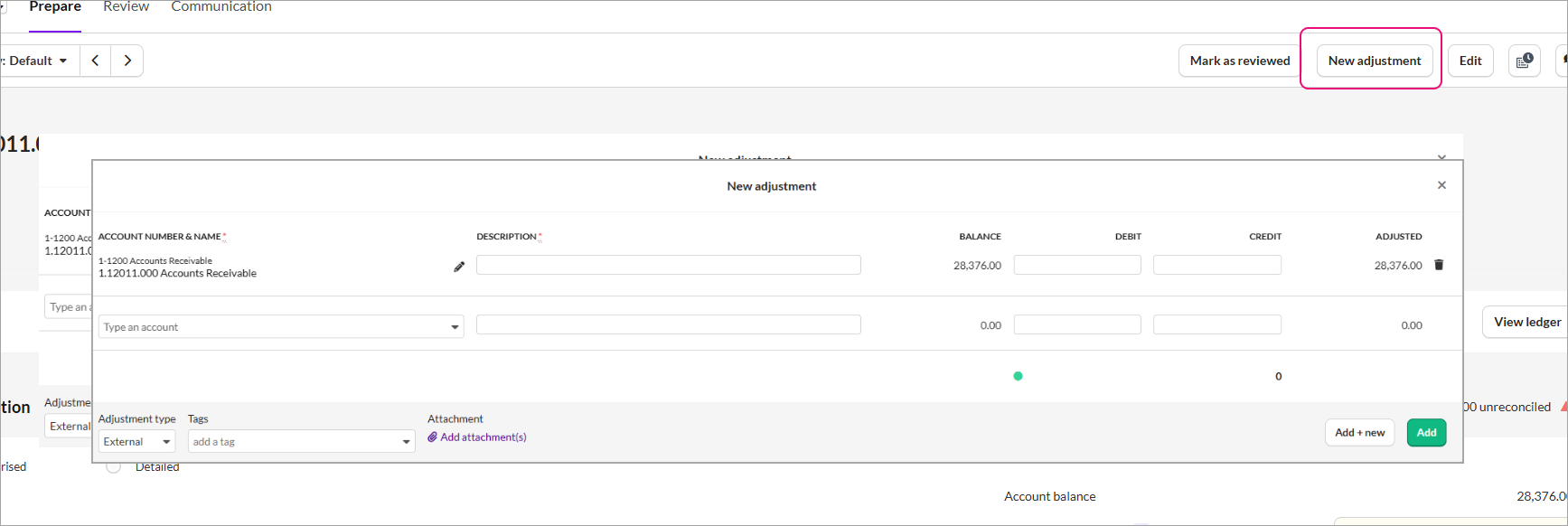
From a workpaper, open an account and select New adjustment on the top right.
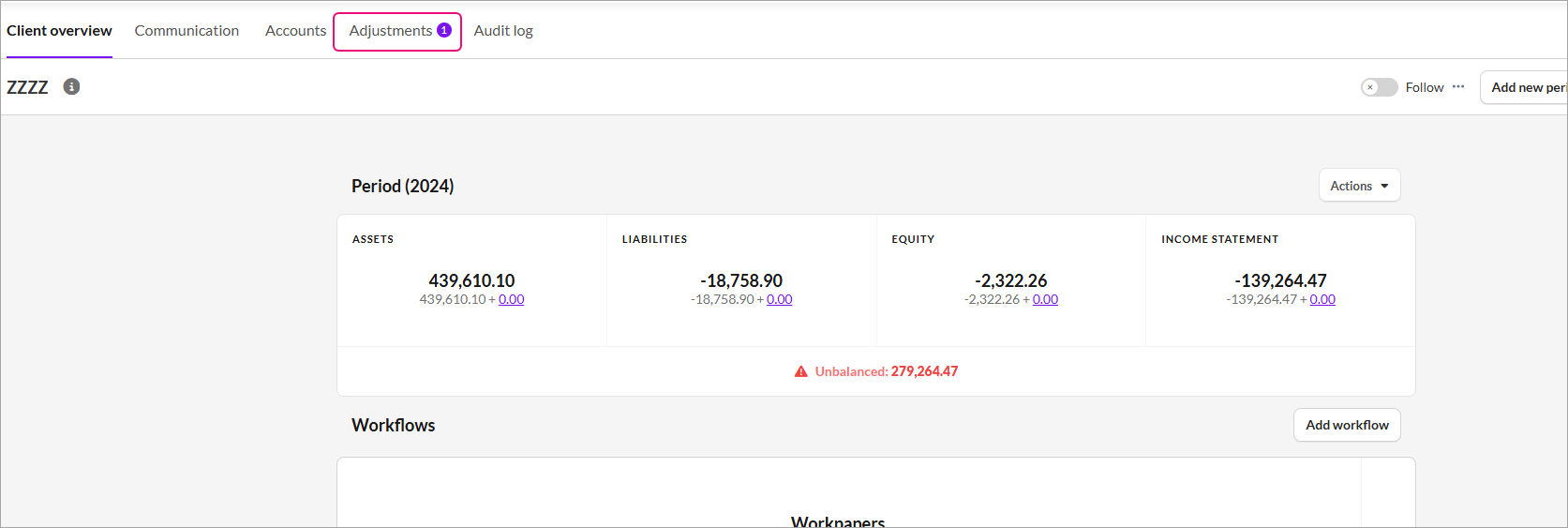
From the clients' overview page, select Adjustments at the top of the page.
Add an adjustment
Select to open the Adjustments
from an account or the
from the client overview window
Complete the details in the new adjustment window. Description is a mandatory field.
Select External or Internal from the Adjustment type drop-down.

External Vs Internal adjustment
When posting an adjustment journal, you can mark it as external or internal. This classification helps you easily identify which journals need to be posted back to the client's ledger.
Journals marked as posted show as External.
Click Add.
You’ll see the adjusted amounts in the workpaper account window.
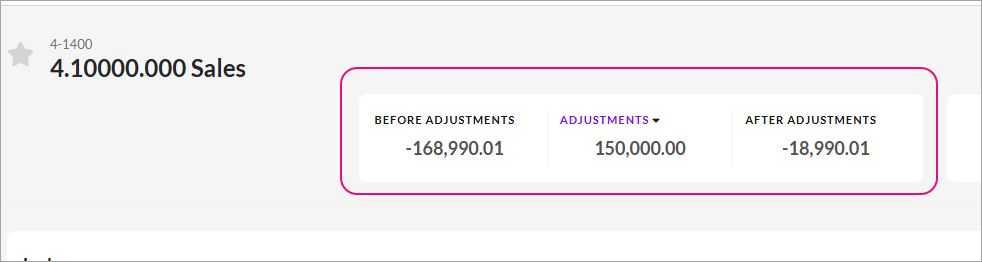
Before Adjustments: Amount from the underlying ledger
Adjustments: The Amount from the added adjustments.
After adjustments: The Amount that is going to be reported on.
Mark the adjustments as posted
Once you’ve added the adjustments, you can post them.

Key points to remember
The journal entries can be duplicated depending on whether the automatic sync is enabled.
Automatic sync enabled: When an adjustment journal needs to be posted to the client’s ledger (e.g., in MYOB Business), and an automatic sync is enabled between Client Accounting and the client’s ledger, the impacts of the journal are duplicated.
This happens when the journal is posted in both Client Accounting and the client’s ledger, and the sync imports the journal posted in the client's ledger entry as a new transaction.
To avoid this, select the journal as Mark as posted.
Automatic sync not enabled: If automatic sync is not enabled, you can manually post adjustments to the client’s ledger without needing to mark them as posted, as there’s no risk of duplication from data imports.
From the Adjustments window in the Client overview, you can select Mark as posted.
When you mark the ledger as posted:
The adjustment is marked as reconciled, and the journal is reversed so it is not duplicated.
The adjustment(s) are greyed out and will show as posted.
Import an adjustment
You can import adjustments in bulk using an Excel file. You can use the adjustments_import_example.xlsx template or create your own and upload from your computer.
adjustments_import_example.xlsx
How to complete the Excel template
Leave an empty line between each adjustment.
Fill in either account_number, original_account_number, or both.
If using tags or categories, add them only on the first line of the adjustment.
Tags must match the existing configuration.
The category must be either Internal or External.
Debit and credit amounts must always be positive
Upload the file
Go to the Adjustments tab.
From the Download/Upload drop-down, select Upload.

In the Upload adjustments window, drag and drop the template or browse from your computer.