
Skip table of contents

Roll forward workpaper data from prior year

Rolling over accounting templates and data from a previous year copies across the templates, updates the financial year, and rolls forward the workpapers ready for the new period.

What data rolls over?

  • We’ll rollover descriptions and data that have a corresponding field in the current year

  • Roll over also copies the workpaper so you’re ready for the new year.

  • If there is data in the year that is rolling into, it will be overwritten

Rolling over from the prior year

  1. Before rolling over, make sure the prior year is locked so you don’t accidentally make any changes.

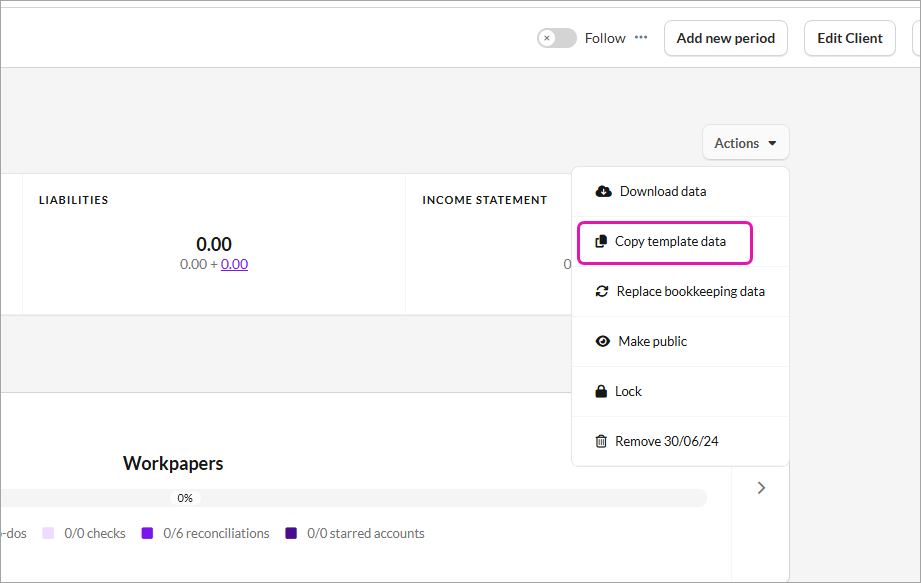
  2. From the Actions menu, select Copy template data.
    copy-template-data.png
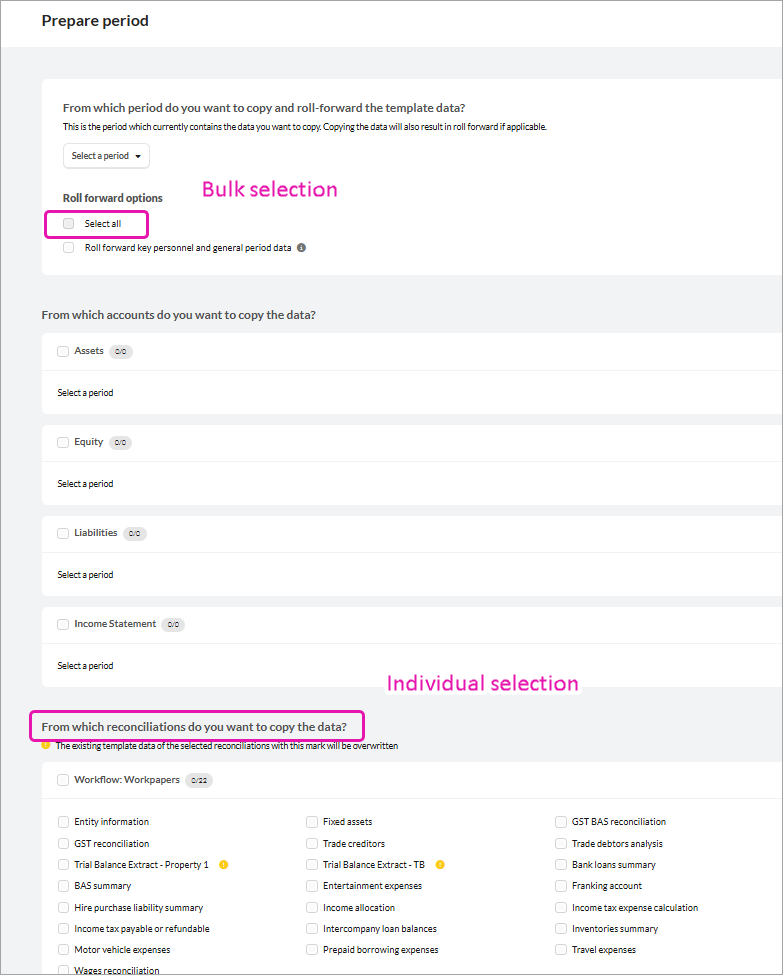
  3. In the Prepare period window, you can select the templates in bulk or one at a time.
    prepare-period.png
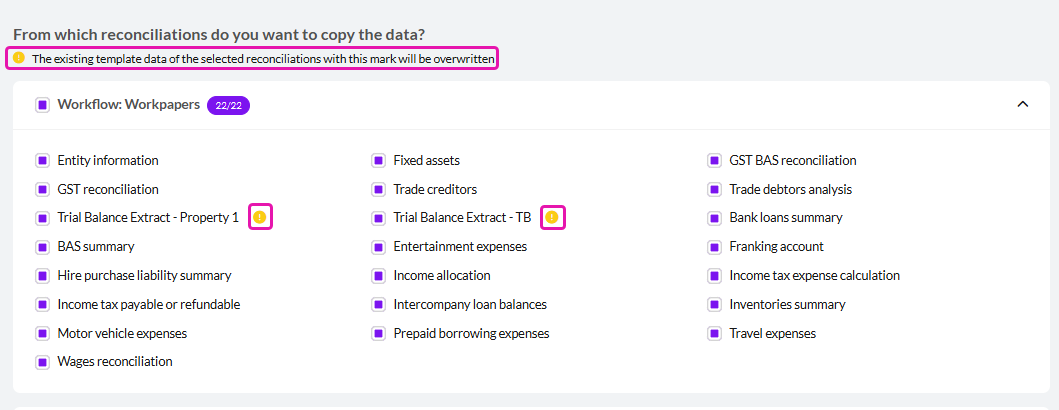
    1. If you see a little yellow warning, the data in it will be overwritten. Make sure you’ve checked the workpapers with the warning, as it will delete the data in the current year’s template.
      data-warning.png
  4. Select Copy to <financial year> to copy the templates.

If you need to edit the prior year data after rolling over

If you rolled over the workpaper before completing it or edited the data for some reason, follow the steps below to update the current year workpapers.

Editing the prior year data
  1. Complete the prior year first: Make sure you’ve finished the work and locked the period.

  2. Export/print the current‑year data

    1. In the current year workpaper, make a note of the current‑year descriptions and data you want to keep, as they will be overwritten.

    2. Save a copy of the current year's workpaper using Actions → Export(Print), so you have a record of it before it is overwritten.

  3. Copy the edited data from the prior year

    1. If using a reconciliation workpaper, go to Actions → Copy data

    2. If using the Account workpaper, scroll down to Compartives and then Actions > Copy below template data above

    3. Select the prior year workpaper and select Yes, override data for <financial year>

    4. This performs a roll-forward for the specific workpaper and updates the description and data.

  4. Re‑enter current‑year descriptions and amounts

    1. Re‑enter the current year amounts and post any adjustments if needed.

JavaScript errors detected

Please note, these errors can depend on your browser setup.

If this problem persists, please contact our support.