
Release date—12 July 2023
Read through this install guide before you start installing the update. It will help you plan the tasks required.
Prerequisites
Installation
To install Tax Manager
-
Install MYOB AE:
-
Log in to my.MYOB and go to My Products > Download.
-
Select MYOB AE Tax Manager or MYOB Tax Manager from the drop-down.
-
Click on the install file to download it:
-
MYOB AE Tax Manager 2023.1 (5.4.47.186) - Update or
-
MYOB AE Tax Manager (Hybrid Plus) 2023.1 (5.4.47.186) - Update.
-
-
Double-click the downloaded file to start the install.
-
Click Release Notes to find out what's changed in this release.
-
For detailed instructions, refer to the MYOB AE install guide—5.4.36 (Australia & New Zealand).
-
-
Install MYOB Tax Manager:
-
Log in to my.MYOB and go to My Products > Download.
-
Select MYOB AE Tax Manager or MYOB Tax Manager from the drop-down.
-
Click on the install file to download it:
-
MYOB AE Tax Manager 2023.1 (5.4.47.186) - Update or
-
MYOB AE Tax Manager (Hybrid Plus) 2023.1 (5.4.47.186) - Update.
-
-
Double-click the downloaded file and click unzip. The installation welcome window opens.
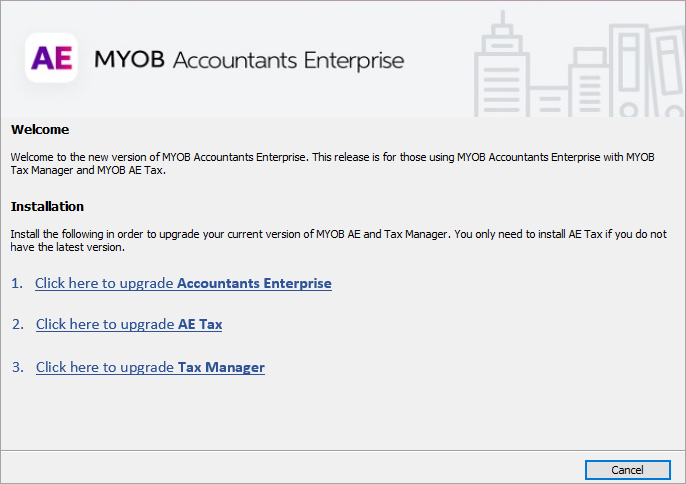
If you don't see the installation welcome window, browse to the location where you extracted the file and:
-
if you are non-hybrid site, run AETMServerSetup_AETax.exe
-
if you are hybrid site, run AETmServerSetup_HybridPlus_AOClassicTax.exe.
-
-
Click Click here to upgrade Tax Manager.
-
Click Release Notes to find out what's changed in this release.
-
Install AE Tax Manager to the same location as MYOB AE, normally your SQL Server.
-
After you have installed both MYOB AE and Tax Manager, run the workstation setups on the SQL server and workstation:
For MYOB AE
The MYOB AE workstation setup should run automatically.
If it doesn't, run the workstation setup manually:-
on the server, run C:\Program Files (x86)\MYOB\CENTRAL\Client\setup.exe.
-
on a workstation, run \\<servername>\CentralClient\setup.exe.
For detailed instructions, see the MYOB AE install guide.
For MYOB AE Tax Manager
Run on the server and all workstations:
-
on the server, run C:\Program Files (x86)\MYOB\CENTRAL\Client\TMAEWorkstationSetup.exe.
-
on a workstation, run \\<servername>\CentralClient\TMAEWorkstationSetup.exe.
-
-