Release date—January 2026
Make sure you've installed MYOB AE/AO release notes—5.4.56/2025.1 SP1 (Australia) before installing this hotfix. Otherwise, the installation will not continue.
Release notes
Lodgement Manager homepage date range shows only up to 31/12/2025
You may notice that the date range on the Lodgement Manager homepage shows only up to 31/12/2025. The date field options do not have the 2026 year. This is now fixed.
Installing the hotfix
Prerequisites
-
You must have MYOB AE/AO version 5.4.56 installed, and the Tax version is 2025.1. To check your current version, click Help > About.
-
Ensure you have administrator access to the server where MYOB AE/AO is installed.
-
Ensure all users are logged out of MYOB Tax.
-
A workstation install is required for this hotfix.
Installation
-
Go to my.MYOB and download the MYOB Tax Hotfix 871497729 - Installer file to your server location where you installed MYOB AE/AO.
-
Double-click the executable to start the installation.
-
In the Welcome to the InstallShield Wizard window, click Next.
-
Select I accept the terms in the licence agreement. Click Next.
-
In the Ready to install window, click Install to start the installation.
-
On the Install Completed window, click Finish.
Workstation install
There are changes to workstation installations as part of this release.
The workstation installation can be performed either through auto-update when you open AO or AE, or you can run a Manual update.
Automatic update
If you see this screen when you open MYOB AO, automatic workstation updates are enabled at your practice.
Click Yes to update your workstation automatically.
Click No, and you will need to run a Manual update (see below)

Manual update
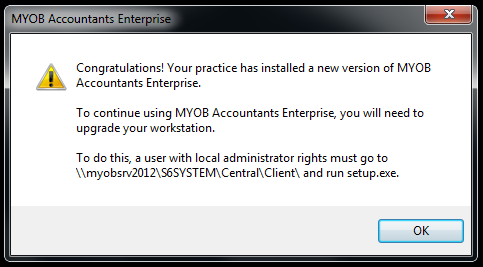
If you see this screen, automatic workstation updates have been disabled for your practice, so you should run a Manual update on your workstation.
Steps to install the workstation manually
-
Log in to the workstation as an administrator.
-
Navigate to the path
-
AE: \\ServerName\MYOBAE\AESQL\WorkstationInstall
-
AO: \\servername\MYOBAO\AOSQL\WorkstationInstall
-
-
Double-click setup.exe. The Licence Agreement window opens.
-
Read and accept the Licence Agreement by selecting the I have read and accept the licence agreement checkbox.
-
Click Next. The Ready to Install window opens.
-
Click Install Now. The Installation Progress window opens.
Post-installation steps
Confirm a successful installation
To confirm that hotfix has upgraded successfully, follow the steps below.
-
On your server, navigate to the deploy folder
-
AE: \\shared drive\MYOBAE\AESQL\Central\Deploy
-
AO : \\shared drive\MYOBAO\AOSQL\Central\Deploy
-
-
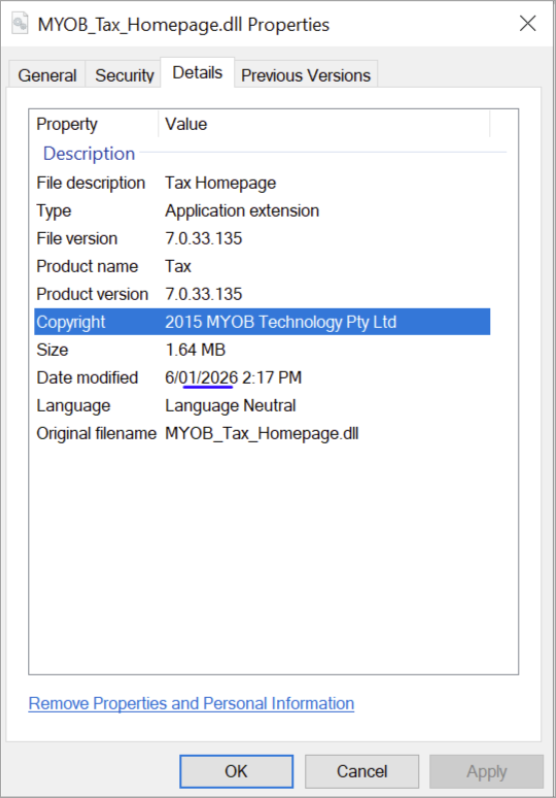
Navigate to the MYOB_Tax_Homepage_dll file, right-click click and select Properties.
-
Go to the Details tab and make sure the Date modified is 6/01/2026.
-
Check the same on your workstation. The Deploy folder location on your workstation is C:\Program Files (x86)\MYOB\Central\Deploy