GDP adjustment for GST and PAYG updated to 1 April 2026 rate.
Business industry descriptions updated as per ATO’s list.
EFT reconciliation report changes
Upgrade to this version to ensure the EFT Reconciliations report continues to work following an upcoming technical change
All return types
Rental property dissection grid rollover: We’ve fixed an issue where the dissection grid was not rolling over from 2025 to 2026.
Individual returns
Reintroduction of Early stage offset for non-managed funds: The ATO has reintroduced the Early stage offset for Non-managed funds.
HELP repayment estimate: We’ve fixed an issue where a 2025 individual tax estimate is no longer calculating the compulsory HELP repayment for a resident taxpayer whose repayment income is above the 2024–25 minimum threshold.
Trust returns
Trust tax estimate for deceased estates: We’ve fixed an issue where the Trust Tax Estimate didn’t include the assessable balancing adjustment for deceased estates when the amount was integrated into Other income item 14: Assessable balancing adjustment.
PDF format of ELD: We’ve fixed an issue where you couldn’t generate the Electronic Lodgment Declaration (ELD) in PDF format. This happened when Print ELD in PDF format was selected and No PDFs were found to process error appeared.
TFN report (TD) decommissioned: The ATO has decommissioned the TFN report (TD) schedule and no new lodgments will be accepted from 1 October 2026.
From 2027, beneficiary TFN reporting for closely held trusts will be completed through the Statement of Distribution.
Beneficiary entity code rollover: We’ve fixed an issue where the beneficiary entity code was not rolling from 2025 to 2026.
Assessable government industry payments incorrect included: We’ve fixed an issue where Assessable government industry payments from schedules B and C were incorrectly included at Item 18.
Incorrect integration at Item 59: Amounts from schedule C were also incorrectly populating Item 59 label Y: Amount of capital gains on which the trustee has chosen to be assessed on behalf of beneficiaries.
Company returns
V71 validation for Korea country selections: We’ve fixed an issue in Company return 2025 where validation error V71 appeared when Korea, Republic of (South Korea) or Korea, Democratic People’s Republic of (North Korea) was selected in the Overseas Country field.
Partnership returns
Assessable government industry payments incorrect included: We’ve fixed an issue where Assessable government industry payments from schedules B and C were incorrectly included at Item 18.
PLS errors
TRT:442289 : We’ve implemented a validation rule if the date of birth is missing in the beneficiary details if the Assessment calculation 30 is selected.
CMN.ATO.GEN.000416: This rejection occurred when there was a leading space in the Entity name or surname. This is now fixed.
CMN.ATO.GEN.XML04: We’ve implemented a validation error if the agent contact name name missing on the Front cover.
IITR.411193: We’ve implemented the validation rule to spouse-related Private Health Insurance (PHI) tax claim codes are only used when a spouse relationship has been confirmed for the relevant income year.
XML01/XML03 - Taxable Payments - IncomeGrossA missing: We’ve fixed this issue where there are null taxable payments gross amounts and will no longer result in an ATO rejection.
Other fixes
Error when deactivating an employee: We’ve fixed an error that was happening when deactivating an employee in AE/AO. This happened when the user didn’t exist in Practice Compliance, or sometimes when the email address included uppercase letters.
Installing 2026.0a
Prerequisites
You must have 2026.0. To check your current version, click Help > About.
Ensure you have administrator access to the server where MYOB AE/AO is installed.
Ensure all users are logged out of MYOB Tax.
Installation
Go tomy.MYOBanddownload the MYOB Tax 2026.0a - Installer file to your server location where you installed MYOB AE/AO.
Double-click the executable to start the installation.
In the Welcome to the InstallShield Wizard window, click Next.
Select I accept the terms in the licence agreement. Click Next.
In the Ready to install window, click Install to start the installation.
On the Install Completed window, click Finish.
Workstation install
You need a workstation install for this release.
The workstation installation can be performed either through auto-update when you open AO or AE, or you can run a Manual update.
Automatic update
If you see this screen when you open MYOB AO, automatic workstation updates are enabled at your practice.
Click Yes to update your workstation automatically.
Click No, and you will need to run a Manual update (see below)
Manual update
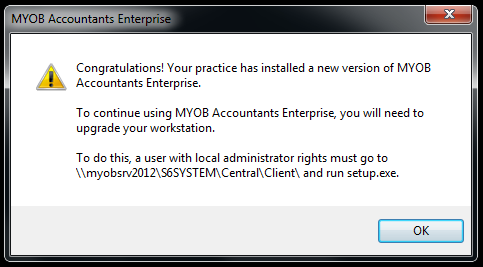
If you see this screen, automatic workstation updates have been disabled for your practice, so you should run a Manual update on your workstation.
Steps to install the workstation manually
Log in to the workstation as an administrator.
Navigate to the path
AE: \\ServerName\MYOBAE\AESQL\WorkstationInstall
AO:\\servername\MYOBAO\AOSQL\WorkstationInstall
Double-click setup.exe. The Licence Agreement window opens.
Read and accept the Licence Agreement by selecting the I have read and accept the licence agreement checkbox.
Click Next. The Ready to Install window opens.
Click Install Now. The Installation Progress window opens.
Post-installation steps
Open a 2026 return, go to Help > About and confirm the version number is 2026.0a.
Open a 2025 return, go to Help > About and confirm the version number is 2025.3a.