From 1 July 2018, complete and lodge a deductions schedule (DDCTNS) with your return if you've claimed a deduction at any of items D1–D10 and D12–D15.
There is no ATO-PDF copy of the Deductions schedule.
RSD and Rollover
The only deductions worksheets that rollover this year are the:
-
Motor vehicle worksheet (mve)
-
Depreciation worksheet (d)
-
Personal superannuation contributions worksheet (psc).
There's no need to change your work flow process, you can:
-
complete each expense label as you've always done
-
use the worksheets provided at the return labels
-
click the label in the main return to open the worksheet. If there's no worksheet, the DDCTNS opens.
Every deduction item's worksheet links to the DDCTNS, except D11.
We'll populate the DDCTNS with details and amounts you've entered for each expense item.
The totals in the DDCTNS for each item are not transmitted to the ATO. They are cross-referenced to the individual return.
There are 3 ways to open a DDCTNS (or other schedule):
-
Click the label
-
Select the <name of schedule> from the navigation pane ATO schedules
-
Select Preparation > Schedules > <name of schedule>
To complete D1 Work-related car expenses
D1: Label A—Work related car expenses. There have been minor changes to the mve worksheet. See Motor vehicle worksheet (mve) 2023
Click label A to open the mve and prepare the worksheet as you did in previous years.
When you save the mve, the amount you're claiming passes to D1: label A in the main return.

At the same time, the transactions are passed to D1 in the DDCTNS:
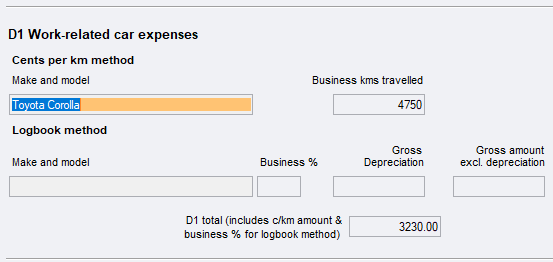
See Item D1 - Work-related car expenses 2023 for full details.
To complete D2 Work-related travel expenses
D2: Label B—Work related travel expenses. This worksheet has been removed and you do your data entry directly in the DDCTNS
If you've completed the Motor vehicle worksheet (mve) 2023 or the Depreciation worksheet (d), any relevant amounts are pre-filled.
There is one visible row for details and amount. To add rows press Ctrl+Insert. To delete rows, press Ctrl+Delete.
You can claim up to 20 related expenses.
When you close the DDCTNS:
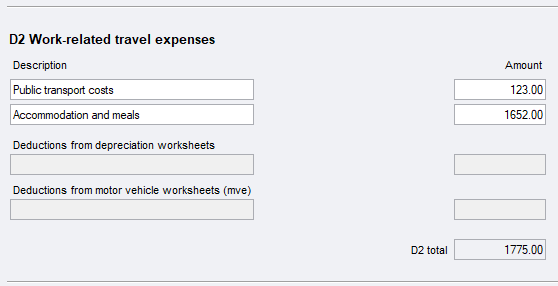
We'll pass the D2 total to D2 label B in the main return:

To complete D3 Work related clothing, laundry and dry cleaning expenses
D3: Label C—Work related clothing, laundry and dry cleaning expenses. The Generic schedule behind this label has been removed and you do your data entry directly in the DDCTNS.
There is one visible row for detail and amount. To add rows press Ctrl+Insert. To delete rows, press Ctrl+Delete.
You can claim up to 20 related expenses.
When you close the DDCTNS:
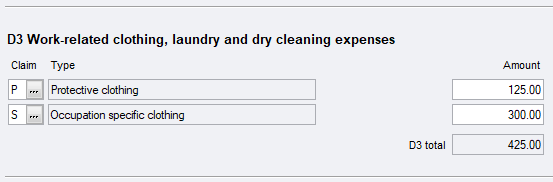
We'll pass the D3 total to D3 label C in the main return:

See Item D3 - Work-related clothing, laundry and dry-cleaning expenses 2023
To complete D4 Work-related self-education expenses
D4: Label D—Work related self-education expenses. This worksheet has been redesigned to meet the ATO's requirements. See Work-related self-education Expenses worksheet (sed) 2018 2018
If you've completed the Motor vehicle worksheet (mve) 2023 or the Depreciation worksheet (d), any relevant amounts are pre-filled.
You can claim up to 20 related expenses.
If you are claiming stationery or books, you don't need to record each item, just your total stationery and books costs.
When you close the worksheet the amount you're claiming passes to D4 label D in the main return:

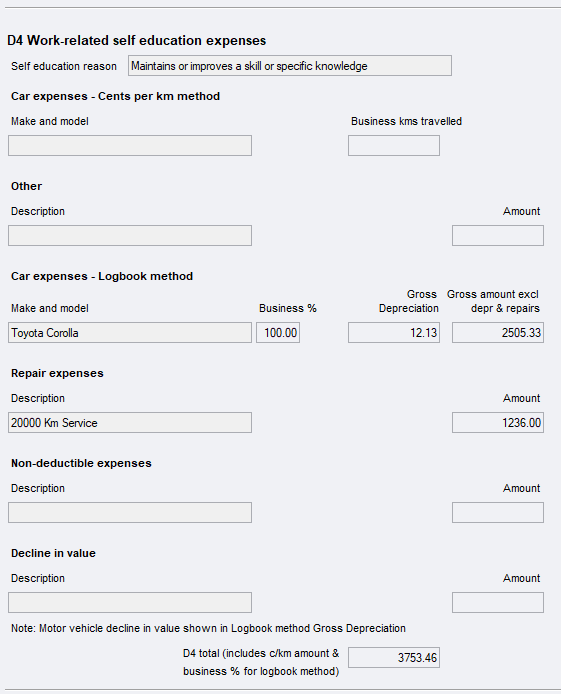
At the same time, the transactions are passed to the D4 in the DDCTNS:
To complete D5 Other work related expenses
D5: Label E—Other work related expenses. The worksheet has been redesigned to meet the ATO's requirements. See Other Work Related Expenses worksheet (pwe) 2023
You cannot enter data directly into the Deductions schedule for D5. You must use the worksheet.
If you've completed the Motor vehicle worksheet (mve) 2023 or the Depreciation worksheet (d), any relevant amounts are pre-filled.
You can claim up to 50 related expenses.
If you are claiming the same sorts of item, for example: stationery or books, you don't need to record each item, just your total stationery and books costs.
When you close the worksheet, the amount you're claiming passes to D5 label E in the main return:

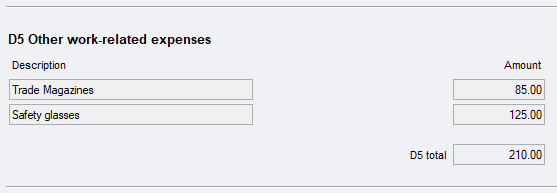
At the same time, the transactions are passed to the D5 in the DDCTNS:
See Other deductions worksheet (ode) 2023
If you've used the ATO Pre-fill, any related information will be pre-filled into the Other Work Related Expenses worksheet (pwe) 2023.
See Pre-fill manager 2023 for information on the PLS ATO-pre-fill functionality.
To complete D6 Low value pool deduction
D6: Label K—Low value pool deduction. The worksheet behind this item is the Depreciation worksheet (d)
There is no free data entry field in the DDCTNS for low value pool deductions. You must use the worksheet.
-
Click label D6
-
Select the depreciation worksheet from Navigation pane for worksheets
-
Preparation > Schedules > Depreciation worksheet
If you've completed the Motor vehicle worksheet (mve) 2023 or the Depreciation worksheet (d), any relevant amounts are pre-filled and added to the total.
When you close the worksheet the amount you're claiming passes to D6 label K in the main return:

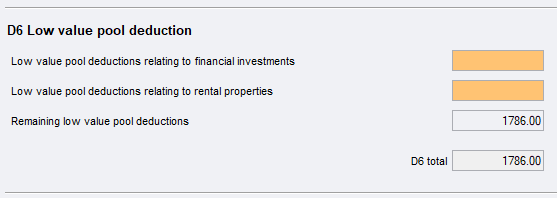
At the same time, the transactions are passed to the D6 in the DDCTNS:
To complete D7 Interest deductions
D7: Label I—Interest deductions. The worksheet idd has been removed and you do your data entry directly in the DDCTNS.
If you've completed the Motor vehicle worksheet (mve) 2023 or the Depreciation worksheet (d), any relevant amounts are pre-filled.
There is one visible row for details and amount. To add rows press Ctrl+Insert. To delete rows, press Ctrl+Delete.
You can claim up to 20 related expenses.
When you close the DDCTNS:
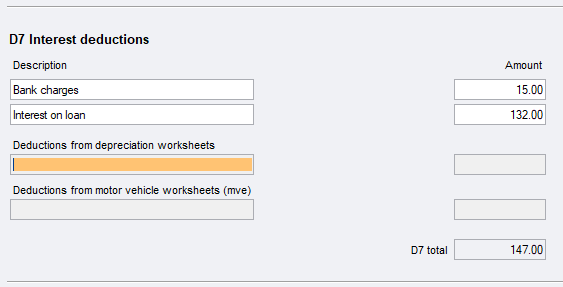
We'll pass the D7 total to D7 label I in the main return:

To complete D8 Dividend deductions
D8: Label H—Dividend deductions. The worksheet ddd has been removed and you do your data entry directly in the DDCTNS.
If you've completed the Motor vehicle worksheet (mve) 2023 or the Depreciation worksheet (d), any relevant amounts are pre-filled.
There is one visible row for details and amount. To add rows press Ctrl+Insert. To delete rows, press Ctrl+Delete.
You can claim up to 20 related expenses.
When you close the DDCTNS:
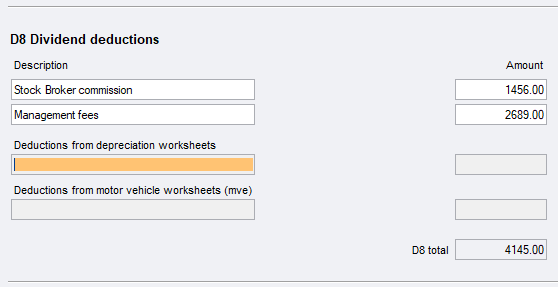
We'll pass the D8 total to D8 label H in the main return:

To complete D9 Gifts or donations
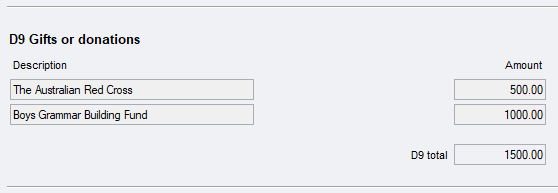
D9: Label J—Gifts or donations. The dissection grid has been replaced by the Gifts or Donations worksheet (pgd) 2023.
You can claim up to 20 related expenses.
When you close the worksheet the amount you're claiming passes to D9 label J in the main return:

At the same time, the transactions are passed to the D9 in the DDCTNS:
To complete D10 Cost of managing tax affairs
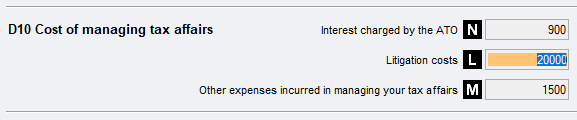
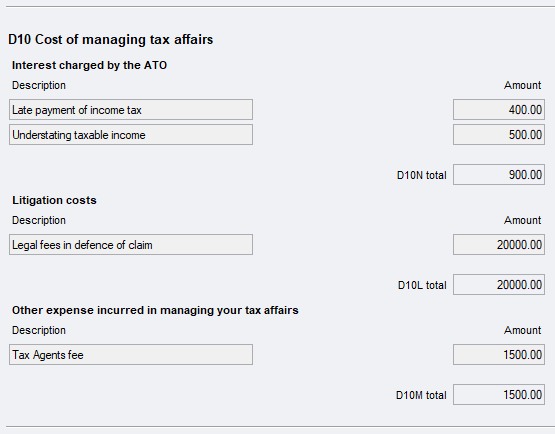
D10: Cost of managing tax affairs - Labels N, L and M are covered by the Cost of managing tax affairs (cmt) 2023.
You must use the worksheet to complete D10 as there are no editable fields in the DDCTNS.
There is one visible row for details and amount. To add rows press Ctrl+Insert. To delete rows, press Ctrl+Delete.
You can claim up to 20 related expenses.
If you've completed the Motor vehicle worksheet (mve) 2023 or the Depreciation worksheet (d), any relevant amounts are pre-filled and added to the total expenses.
When you close the worksheet cmt, we'll:
Pass the total amounts for the three labels to the main return:
Pass the details and amounts to N, L and M to D10 in the DDCTNS:
To complete D12 Personal superannuation contributions
See Item D12 label H on the ATO website for further information.
D12: Label H—Personal Superannuation contributions. The worksheet has been redesigned to meet the ATO's requirements. See Personal superannuation contributions (psc) 2023.
You cannot enter data directly into the Deductions Schedule. You must use the psc worksheet.
You can claim up to 25 contribution Fund details and amounts.
When you close the worksheet the amount you're claiming passes to D12 label H in the main return:

At the same time, the transactions are passed to the D12 in the DDCTNS:
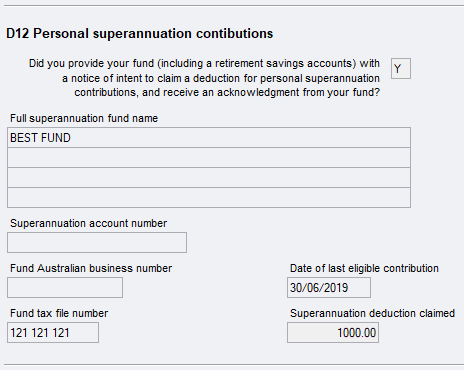
See Item D12 - Personal Superannuation Contributions 2023
If you've used the ATO Pre-fill, any related information will be pre-filled into the Personal superannuation contributions (psc) 2023 .
See Pre-fill manager 2023 for information on the PLS ATO-pre-fill functionality.
To complete D13 Deduction for project pool
D13: Label D—Deduction for project pool. The worksheet behind this item is the Depreciation worksheet (d).
If you don't want to use the Depreciation worksheet, there is a free data entry field in the DDCTNS where you can enter the details and total amount:
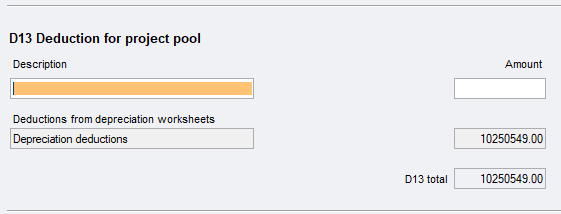
When you close the DDCTNS the amount you're claiming passes to D13 label D in the main return:

To complete D14 Forestry managed investment scheme deduction
The worksheet at this item is the Forestry managed investment scheme worksheet (fms) 2023
If you've received income from Forestry managed investment schemes, then You can not have to complete this item.
The fms worksheet covers both income and deductions and passes values to both the:
-
income item 23: Label A and
-
deductions item D14: label F.
When you close the worksheet the amount you're claiming passes to D14 label F in the main return:

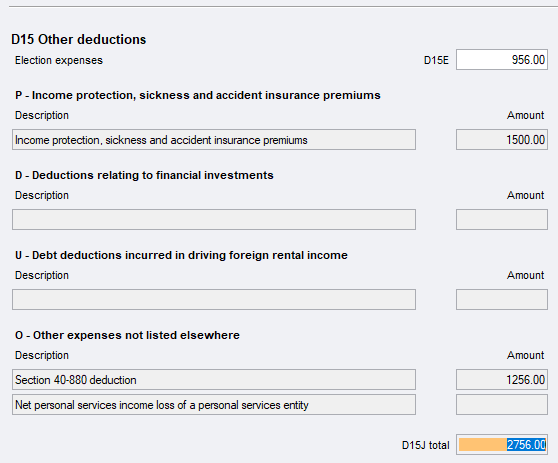
At the same time, the transactions are passed to the D14 in the DDCTNS:
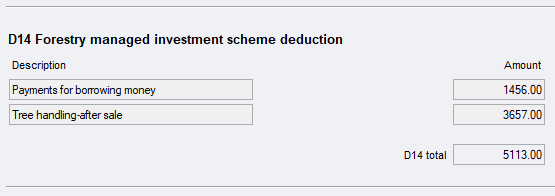
See Item D14 - Forestry managed investment scheme deduction 2023.
To complete D15 label E Election expenses
D15: Other deductions - Labels E.
This label covers the amount being claimed for election expenses you paid for local, territory or federal candidates.
The Generic schedule provided in previous years has been replaced by a direct link to the DDCTNS.
Click label E to open the Deductions schedule at D15: Election expenses in the DDCTNS.
There is no insert of additional rows for label E. Enter the total amount of your election expenses.
When you close the DDCTNS we'll pass the amount from D15E to label E in the main return.


To complete D15 label J Other deductions
See Item D15 Other Deductions on the ATO website for further information on what deductions are claimable at D15J.
Click label J to open the Other deductions worksheet (ode) 2023.
The ATO allows up to 100 different expense items to be lodged. To add rows to the ode, press Ctrl+Insert. To delete rows, press Ctrl+Delete.
Complete the ode worksheet remembering to select a Claim type code for each expense claimed.
When you close the worksheet, we'll pass the total of all entries to item D15 label J in the income tax return.

At the same time we'll pass the entries from the ode worksheet to D15J in the DDCTNS.