After upgrading to Windows 11 24H2 or installing AE/AO in a new Windows 11 24H2 machine, you may see an error while opening AE/AO.
The log file located in %appdata%\ \MYOB\ClientFramework\Clientframework.log will show an error similar to
System.Configuration.ConfigurationErrorsException. An error occurred creating the configuration section handler for nlog: Exception occurred when loading configuration from \\Servername>\MYOBAE\AESQL\Central\Deploy\ClientFrameWork.exe.Config
(\\<Servername>\MYOBAE\AESQL\Central\Deploy\ClientFrameWork.exe.Config line 336) NLog.NLogConfigurationException Exception occurred when loading configuration from
\\<Servername>\MYOBAE\AESQL\Central\Deploy\ClientFrameWork.exe.Config System.ArgumentException Target cannot be found: 'File'
Why is this error happening?
This is due to the 24H2 update disabling .Net 3.5.
To fix the issue
To fix the issue, follow the steps below to re-enable .Net 3.5
-
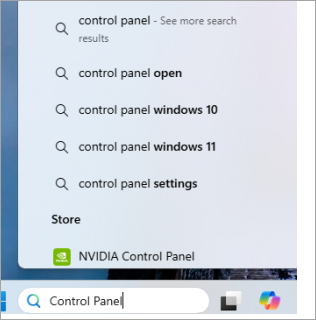
On the workstation, open Control panel.
-
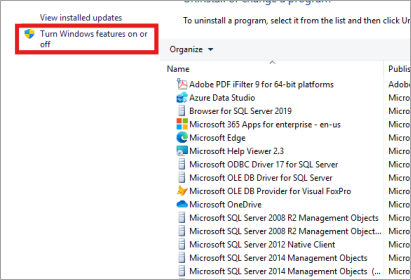
Select Programs and Features.
-
On the left side, select Turn Windows features on or off.
-
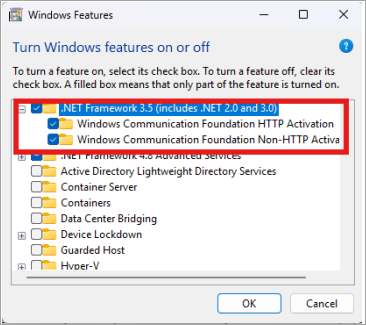
In the Windows features window, tick the following
-
.NET Framework 3.5 (includes .NET 2.0 and 3.0)
-
Windows Communication Foundation HTTP Activation
-
Windows Communication Foundation Non-HTTP Activation
-
-
-
Click OK. Windows will search for the required files. Once found. Windows will install the .NET components.
-
When you see the Windows completed the requested changes message, click Close.
-
Go back to the Windows features window and make sure the features are ticked.
-
Open AE/AO to make sure you don’t see an error.